WordPress WooCommerce
PHP2Shell (October 2026)
The ArtsPay plugin is not affected. The vulnerability is in PHP itself, so check with your host that your WordPress site runs PHP 8.2.35, 8.3.36, 8.4.27, 8.5.12 or later.
The official ArtsPay payment gateway plugin for WooCommerce. It adds card payments to your checkout, backed by Fat Zebra, entirely through a WordPress admin settings screen.
Unlike the other guides in this section, there's no code to write here. The plugin handles the checkout form, keeps your site out of PCI scope, and makes the API calls to Fat Zebra for you. This guide covers installing it, testing it, and going live.
Before you start
- WordPress 6.0 or higher, with WooCommerce installed and active. PHP 8.0 or higher.
- Nothing needed from ArtsPay or Fat Zebra to start testing: the plugin ships with Fat Zebra's public sandbox username, token and shared secret pre-filled.
- For going live, you'll need production credentials (username, token, shared secret) from ArtsPay.
Step 1: Install and activate
- Download the plugin ZIP from GitHub Releases. A
.sha256checksum is published alongside each ZIP. - In WordPress admin, go to Plugins → Add New → Upload Plugin and choose the ZIP.
- Click Install Now, then Activate.
- If the plugin name appears blank at first, the gateway may be whitelabelled: open Plugins, use Manage (or the gateway settings), and save to set the name.
Step 2: Turn it on and test in sandbox
Go to WooCommerce → Settings → Payments.
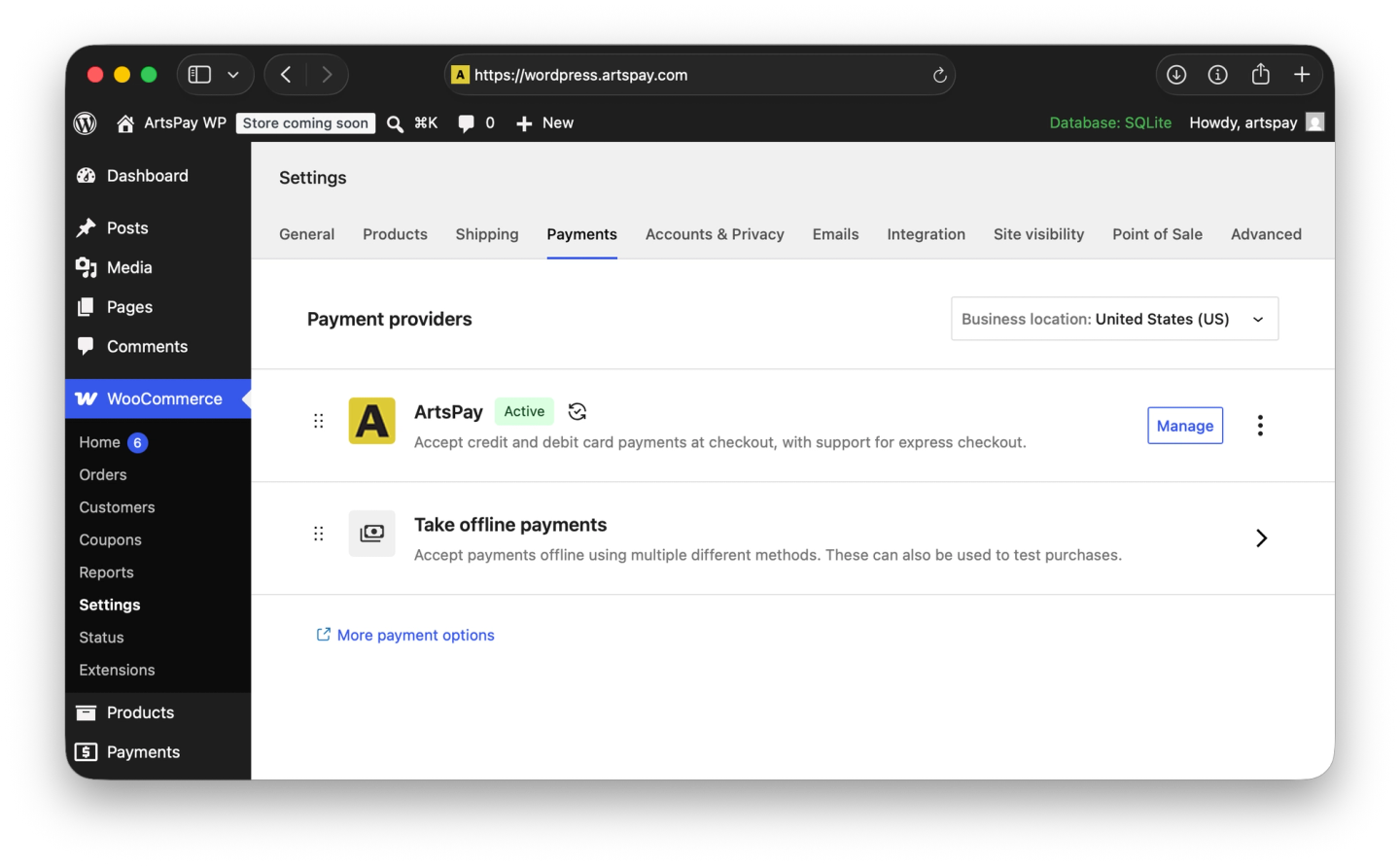
Enable ArtsPay, then open it to reach its settings screen.
Confirm Enable Test Mode is checked. It's on by default, pre-filled with Fat Zebra's public sandbox credentials, so nothing else is required just to test.
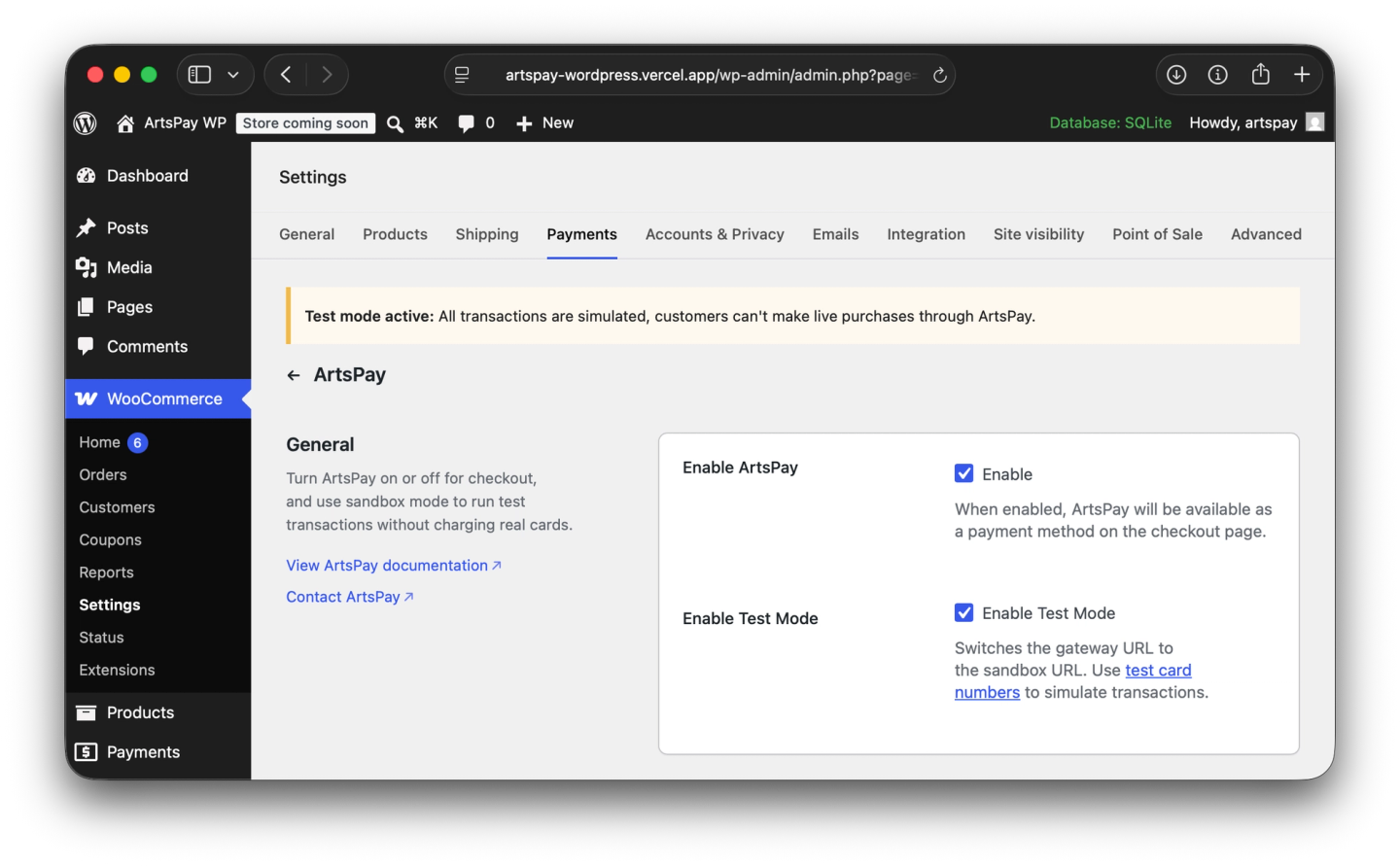
Save changes.
Run a test checkout using a sandbox test card to confirm everything works end to end.
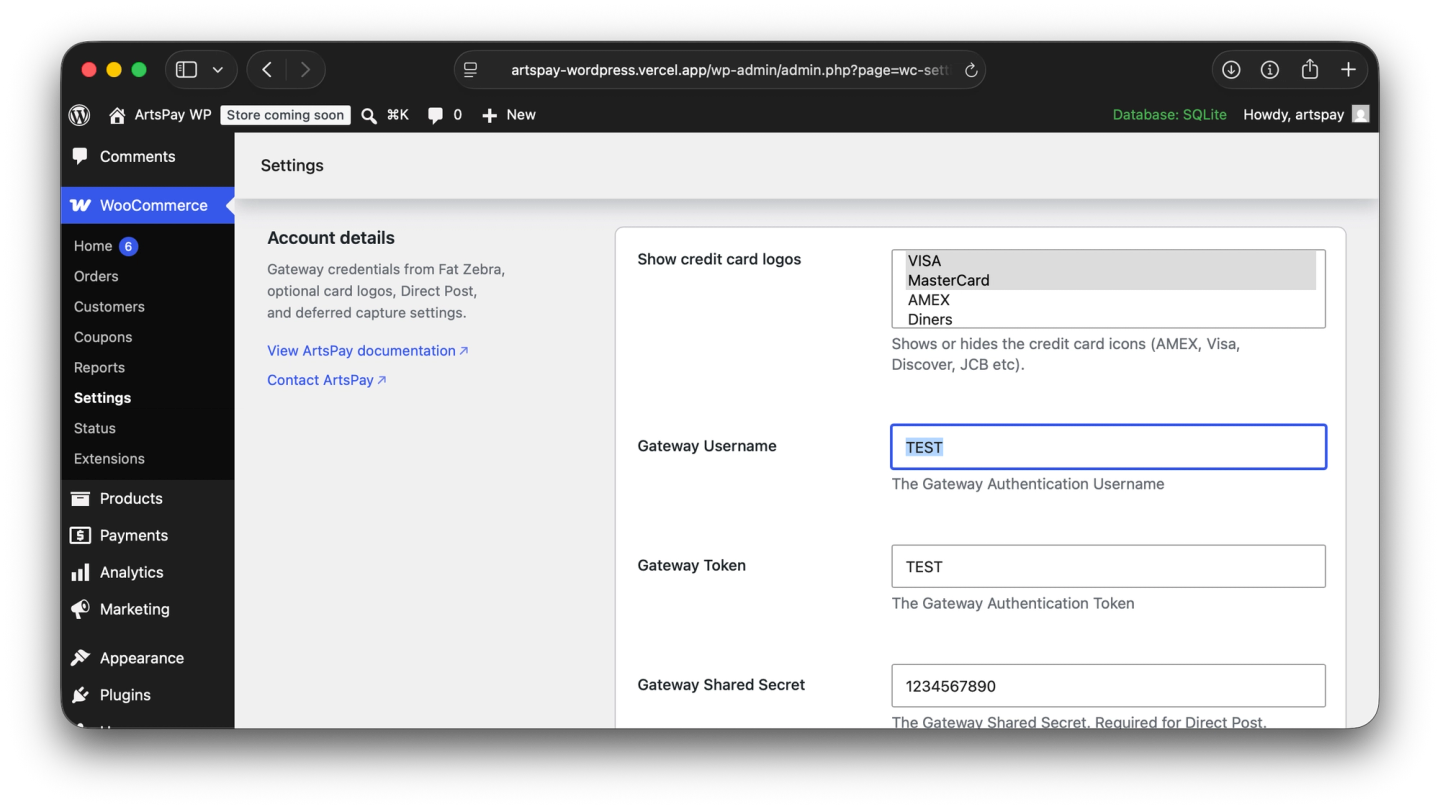
Step 3: Go live
Open WooCommerce → Settings → Payments → ArtsPay.
Under Account details, enter your production Gateway Username, Gateway Token and Gateway Shared Secret from ArtsPay or Fat Zebra.
Uncheck Enable Test Mode.
Save changes. The store now charges real cards.
Optional features
Direct Post
Enable Use Direct Post to tokenize the card in the browser via Fat Zebra's fatzebra.js, rather than posting card data to your server first. Requires the Gateway Shared Secret to be set.
Deferred payments
Enable Enable Deferred Payments to capture the customer's card details at checkout without charging immediately, useful for reviewing high-risk orders before taking payment. The order sits on hold until you manually capture it.
Deferred payments aren't used for subscription carts: subscription renewals always process in real time.
Fraud screening (Forter)
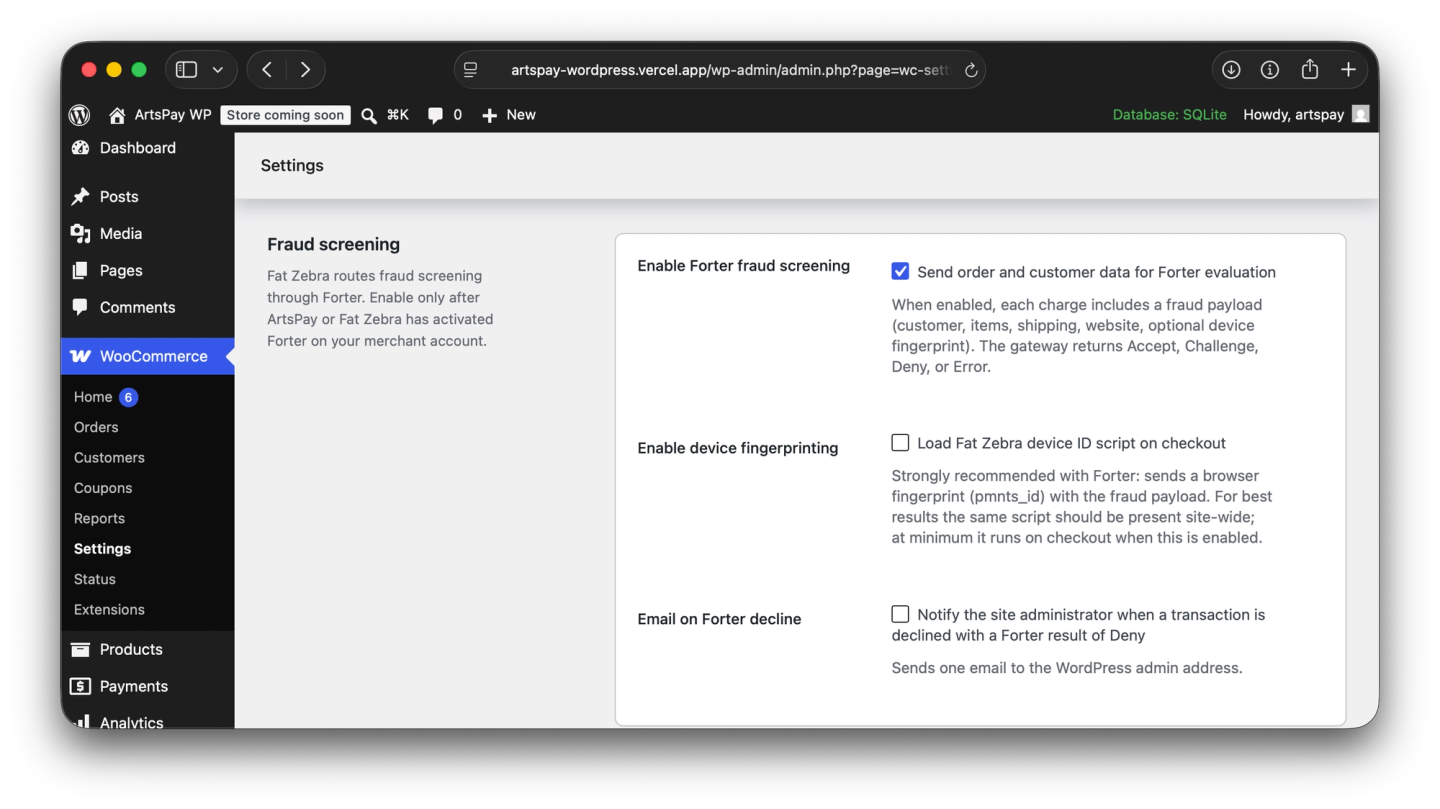
Optional, and only takes effect once ArtsPay or Fat Zebra has activated Forter on your merchant account (sandbox and production are configured separately). Enabling it before that won't do anything.
Once activated on your account:
- Enable Enable Forter fraud screening.
- Also enable Enable device fingerprinting. This is strongly recommended: Forter's results are much weaker without it.
- Optionally enable Email on Forter decline to notify the site admin when a decline is a Forter Deny.
Each charge is scored Accept, Challenge, Deny, or Error. Only Deny blocks checkout the way a normal decline does; Challenge orders still complete, but are worth reviewing before fulfilment since the plugin doesn't automatically hold or cancel them. See the plugin's fraud screening reference for the full behaviour.
Captcha
Optional bot protection on checkout, using Google reCAPTCHA v3 or Cloudflare Turnstile, shown before the payment is submitted.
- Enable Enable Captcha Protection.
- Choose a Captcha Provider.
- Enter the Site Key and Secret Key from that provider's own dashboard.
Testing
Sandbox mode is on by default with public test credentials pre-filled, so there's nothing to set up just to explore. Use the standard test card numbers to trigger approvals and declines.
If you've enabled fraud screening, use the billing email accept@email.com, challenge@email.com, or deny@email.com to simulate each Forter outcome in sandbox.
Before going live, exercise checkout, refunds, deferred capture (if enabled), and subscription renewals on a staging site.
| Card Number | Scenario | Testing |
|---|---|---|
4005 5500 0000 0001 | The card payment succeeds. | Fill out the payment form using the credit card number with any expiration and CVC. |
4557 0123 4567 8902 | The card is marked as declined with a declined code. | Fill out the payment form using the credit card number with any expiration and CVC. |
4000 0000 0000 1091 | The card payment requires liability shift 3DS/SCA authentication. | Fill out the payment form using the credit card number with any expiration and CVC. |
FAQ
Why does the plugin show a blank name after activating?
The gateway may be whitelabelled for your account. Open Plugins, use Manage (or the gateway settings), and save to set the name.
Does "ArtsPay" appear at checkout?
No. The payment option a customer sees is always labelled Credit / Debit Card. "ArtsPay" is only the name shown in your own WooCommerce → Settings → Payments list.
Does this support Apple Pay or Google Pay?
Wallet support exists in the plugin, but it's being covered in a separate guide once it's ready across the board.
Does this support 3D Secure?
Not today. Card flows use the standard Fat Zebra purchase path; 3DS liability shift and step-up authentication aren't handled by this plugin. If you need 3DS, talk to ArtsPay about what's available at the account level.
Does this work with WooCommerce Subscriptions?
Yes, subscription renewals are charged automatically using the gateway's own stored token, no separate configuration needed beyond having WooCommerce Subscriptions installed. Deferred payments don't apply to subscription carts, as noted above.