Payment Links
Want to use Payment Links?
Payment Links are a quick way to request a payment associated to an invoice, an item, a service when you do not need to create a product or service that is ongoing. Perfect for a one-off payment.
Use Payment Links by sending a link to customers by email or SMS, track payment status, and optionally connect to tools like Harvest to streamline invoicing and reconciliation.
Creating a Payment Link
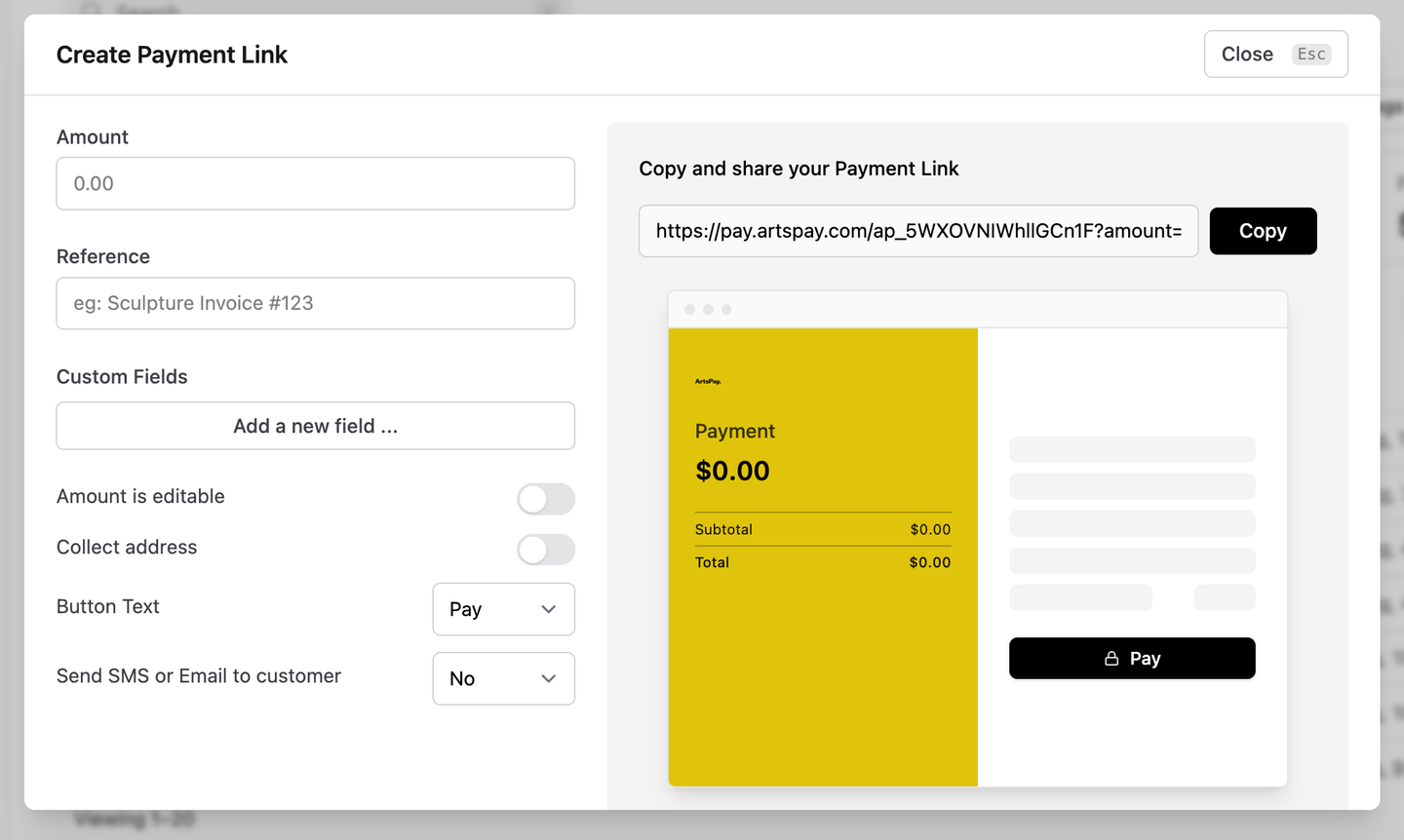
- Login to your ArtsPay Dashboard, and simply click the '$ Create Payment Link' any time you need to request a payment.
- Fill in the Amount, Currency and Reference.
- Check the box if you wish the details to be editable.
- Copy your generated Payment Link
- Send your link to your customer over email, social media, messages etc ...
Payment Links Integration
You can choose to connect your Payment Links with Harvest.
Harvest
Connect your ArtsPay account to your Harvest account and give your customers the option to pay your invoices with a credit card immediately.
As a complete integrated payment services, currently Harvest only supports PayPal and Stripe. However you can very simply generate a URL to include in any of your Harvest email messaging.
Configure Harvest and your Payment URL
- Copy the custom Payment URL - this URL is generated for your account only.
- Log in to your Harvest account and navigate to Invoices > Configure > Messages where you can include the ArtsPay Payment URL in all of your Harvest Messaging, further details here.
- That's it!
Harvest messaging can automatically include dependent information, such as the invoice balance, the invoice issue date, or the invoice due date. A complete list of Harvest variables is available In your Harvest Invoices > Configure > Messages section.
Archiving a payment link
Archiving a payment link cancels it. Once archived, customers will no longer be able to use that link to pay you unless it’s unarchived. This doesn't affect any payments already made through the link, only future use of it.
To archive a payment link:
- Log in to your ArtsPay Dashboard.
- Find the payment link (or the product it's linked to) in your list of links.
- Select Archive.
Note: Editing a payment link's amount does not update it for the customer. If you need to change the price, archive the old link and create a new one rather than re-sending the original.
If you're not sure which link to archive, or need help finding one, contact support@artspay.com.
Payment Link Troubleshooting
Proposed new docs page — could sit under the Payment Links section, linked from the main payment-links page.
My customer can't complete a payment using my link.
If a customer tells you they can't pay using a link you've sent, work through these checks in order.
- Check the link hasn't been archived: Archiving a payment link cancels it. Check your ArtsPay Dashboard to confirm the link is still active.
- Check you haven't edited the price on an old link: Editing a payment link's amount updates it for the customer, the link still charges the original amount.
- Check for a declined card: The most common causes are insufficient funds or an expired card. Ask the customer to try a different card.
- Check whether fraud screening is involved: If you have 3DS2 on your account, the payment may require extra verification from the customer's bank. See Fraud Screening for details.
Still not resolved?
Email support@artspay.com with the payment link and the approximate time of the failed attempt, and our team will investigate on our end.