Dining App
🍽️ Step 1: Install Clover Dining
- On your Clover device, open More Tools .
- Search for Clover Dining and install the app.
🚀 Step 2: Launch and start setup
- Open the Clover Dining app.
- Tap “Let’s Get Started” to begin the setup.
🗺️ Step 3: Build your floor plan (Sections + Tables)
Create Sections
- Tap the green plus (+) button.
- Select Add Section .
- Enter a name (e.g., “Main Dining Room”, “Patio”, “Bar”) and tap Save .
Add Tables to a Section
- Open the section you want (e.g., “Main Dining Room”).
- Tap the green plus (+) button again.
- Choose Add Table .
- Enter a table name/number.
- Select a table shape (e.g., square, round) and set the number of seats.
- Tap Save .
Arrange and save
Drag and drop tables to position them on the floor plan.
- Adjust table sizes as needed.
- Repeat until all sections and tables are added.
- Tap Complete Setup to save your configuration.
✏️ Step 4: Edit your floor plan (later, if needed)
- Open Clover Dining .
- Tap the Menu button (three horizontal lines).
- Select Floor Plan .
- Make changes and save.
🍽️ Step 5: Set up coursing
- Go to Settings → Coursing .
- Choose how many courses you want (e.g., 3-course or 5-course).
- Select whether courses should:
- fire automatically on a schedule , or
- be fired manually by staff.
- Tap Save .
Important note about subscriptions\nMerchants on the Clover Table Service Restaurant subscription can publish menus and have access to Clover Dining.
🗓️ Step 6 (Optional): Public holiday / Sunday menu pricing
To implement public holiday or Sunday pricing, create a separate menu (you are adjusting prices, not adding a surcharge).
Create a new menu
- Go to Items → Menu .
- Duplicate the Default POS Menu.
- Name the new menu (e.g., “PH Menu” ).
- Select the newly created menu.
When you publish a menu from the Default POS Menu option, this is taken from your current inventory.
Adjust prices
- Click Categories and Items → Edit .
- Increase prices by 15% for public holidays (or your chosen percentage).
- Click Save .
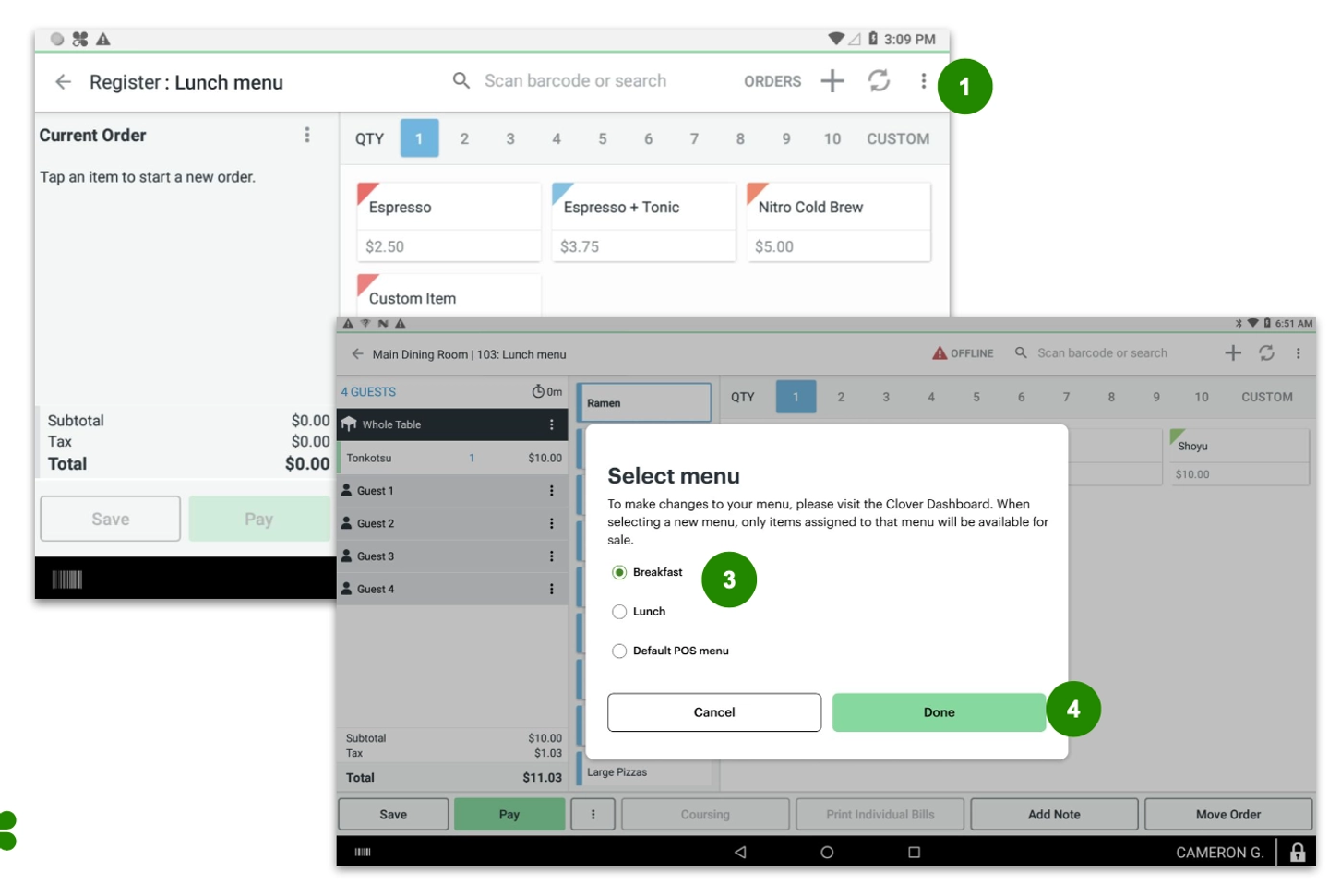
Switch menus on your Clover device
- Open the Register app.
- Tap the three-dot icon (top-right).
- Tap Switch/Change Menu → select the new menu.
Update receipts (recommended)
- Go to Payment Receipts .
- Add a note like: “price includes public holiday surcharge (15% surcharge)” to clarify the pricing.
How to enable DayPart Menus on Clover
'Dayparts' let you schedule different POS menus to show automatically at different times of day (for example Breakfast, Lunch, Dinner). 'Dayparts' are only available for merchants using CSR and TSR subscriptions, and applied to only POS menus, not online ordering menus.
What you need before you start
- The merchant already has the POS menus created in Clover Dashboard.
- You know the merchant’s business hours and the exact menu changeover times.
Key concepts
- Daypart: A time window you define (days + start time + end time).
- Menu availability: Where you assign one or more dayparts to a menu.
- Fallback menu: The menu Clover will show whenever there is a gap (within business hours) where no daypart menu is scheduled.
1) Configure dayparts (Clover Dashboard)
- Go to Settings → Business Operations → Business Hours.
- Scroll to the bottom to find Dayparts.
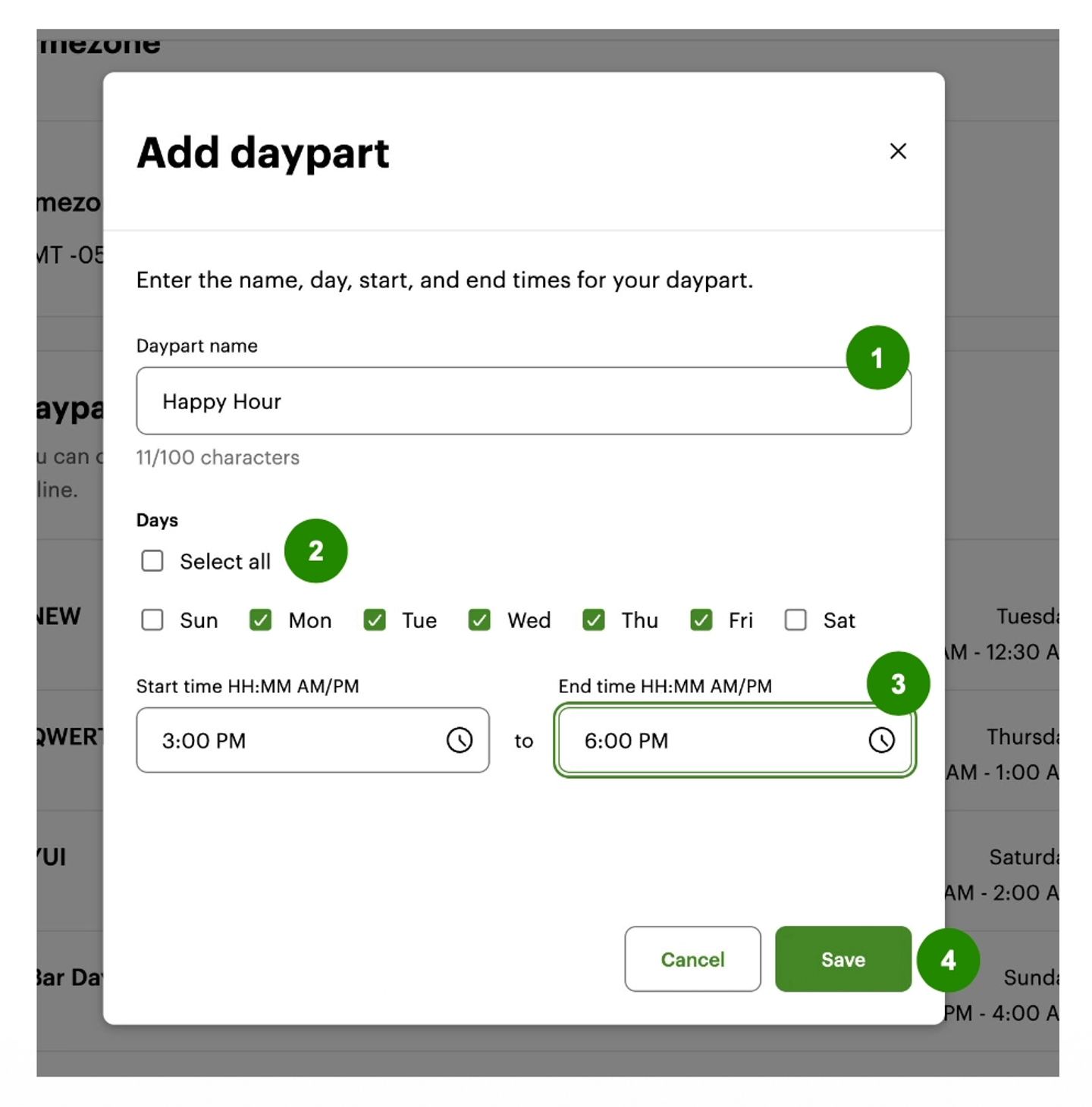
- Select Add.
- Enter the daypart details:
- Daypart name (must be unique)
- Days (choose specific days or Select all)
- Start time and End time
- Select Save.
Editing a daypart
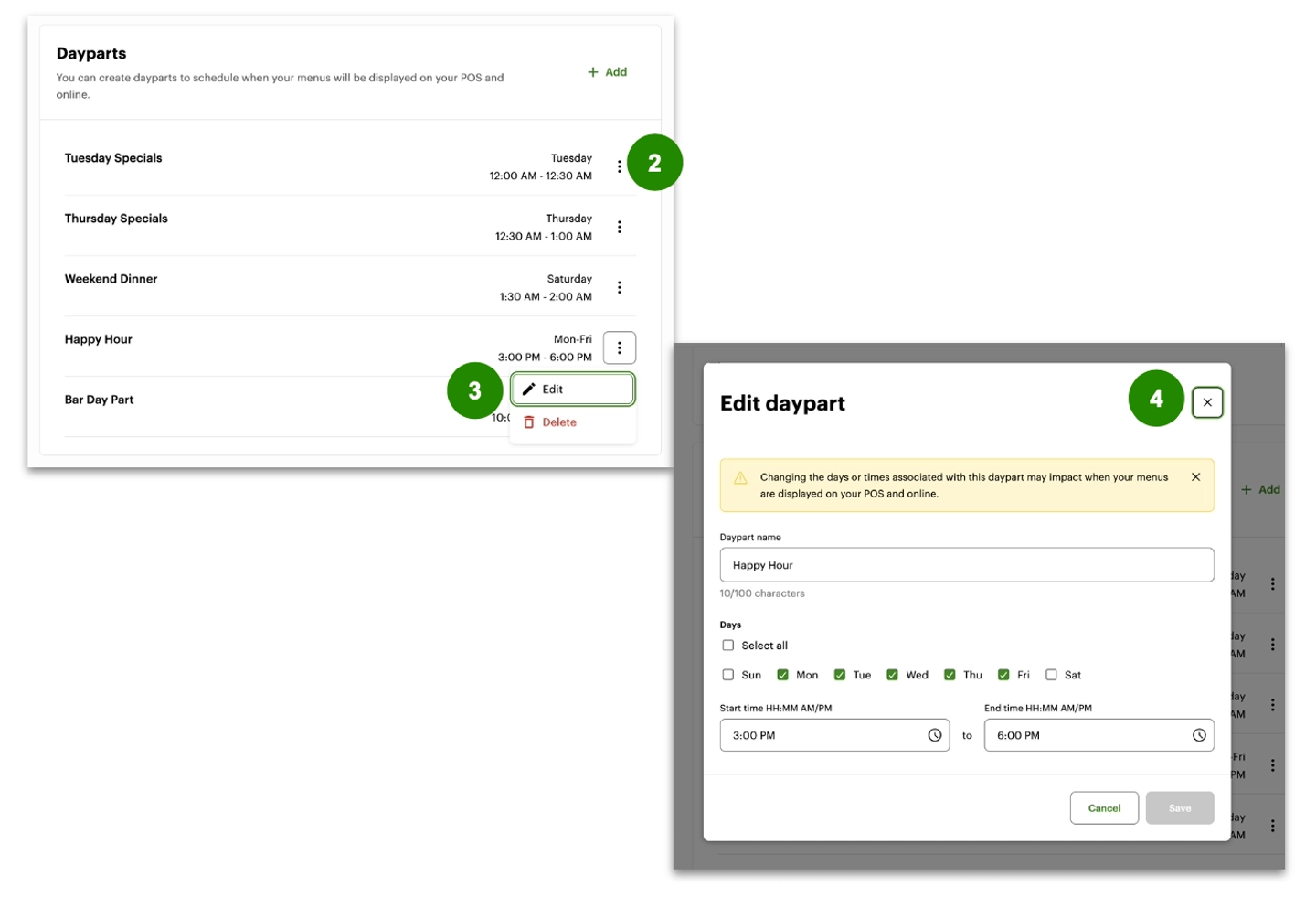
- In Dayparts, find the daypart.
- Select the three vertical dots next to the daypart.
- Select Edit.
- Update name, days, and/or times.
Changing the days or times for a Daypart can change when menus appear on the merchant’s POS.
Deleting a daypart
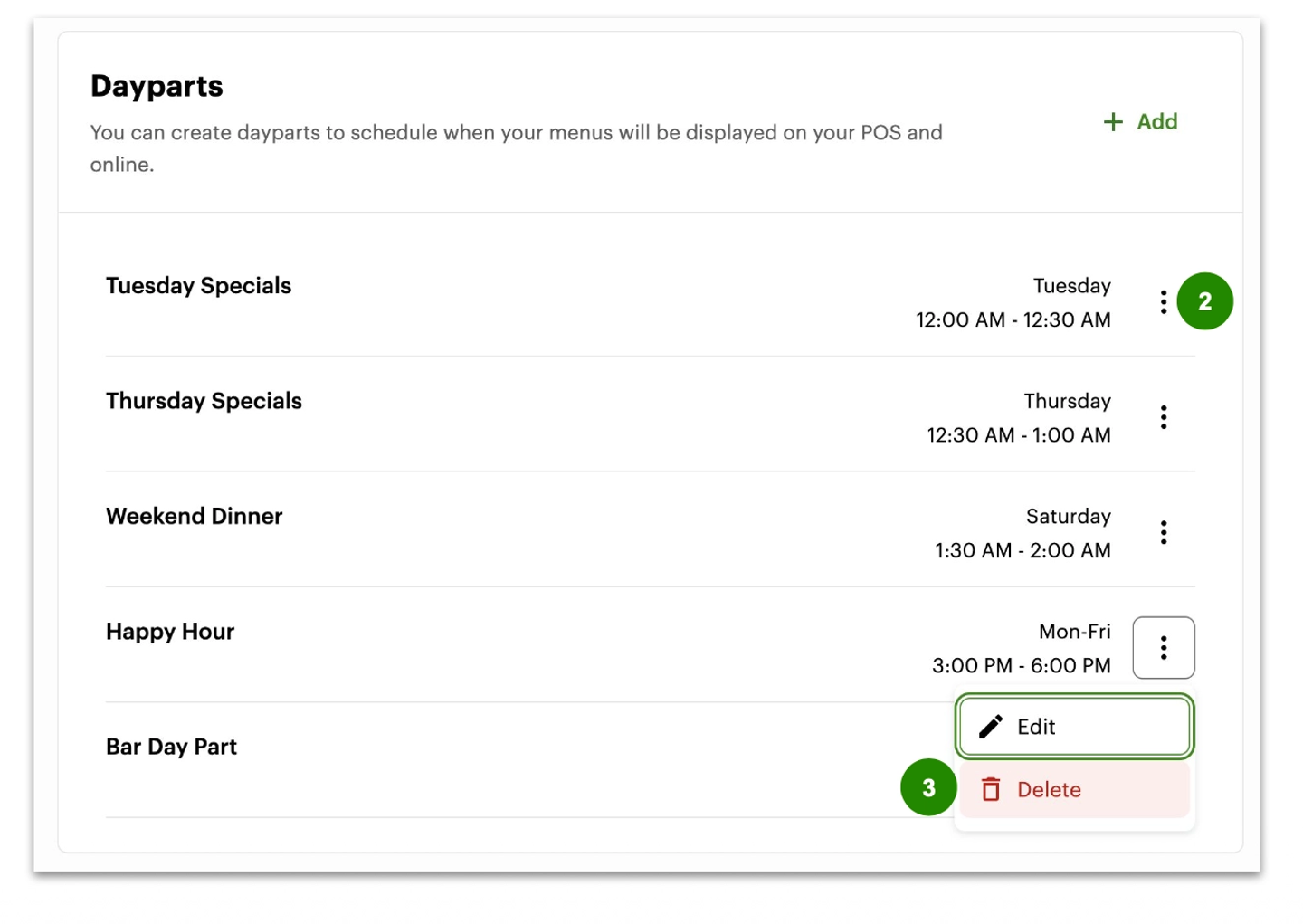
- Find the daypart.
- Select the three vertical dots.
- Select Delete.
- Confirm deletion.
Deleting a Daypart can impact which menus display on POS (and may impact online, depending on merchant setup).
Common daypart errors
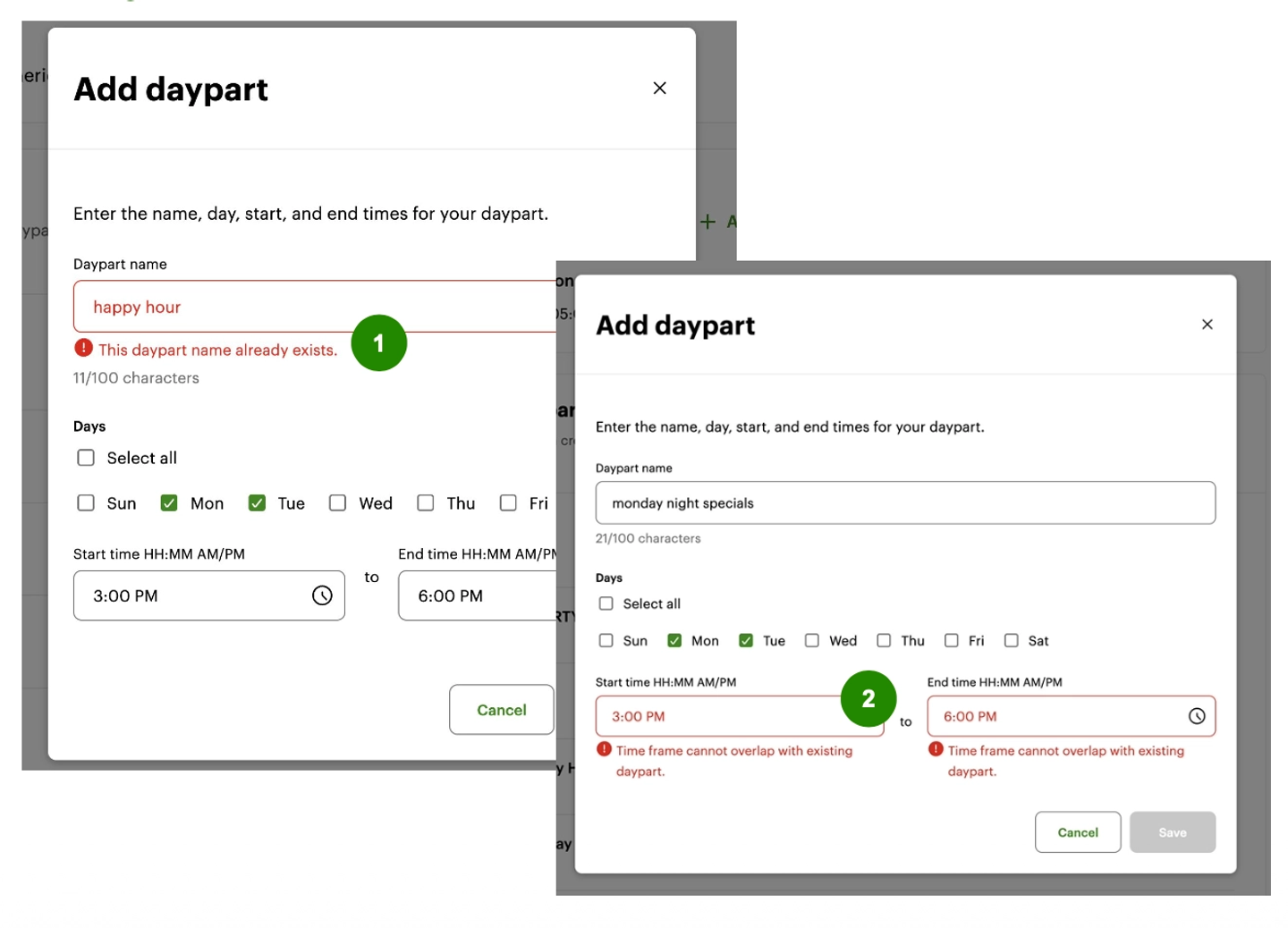
- Each daypart name must be unique.
- Each daypart timeframe must be unique. Dayparts cannot share the same days and times (no overlapping time windows).
2) Assign a daypart to a POS menu
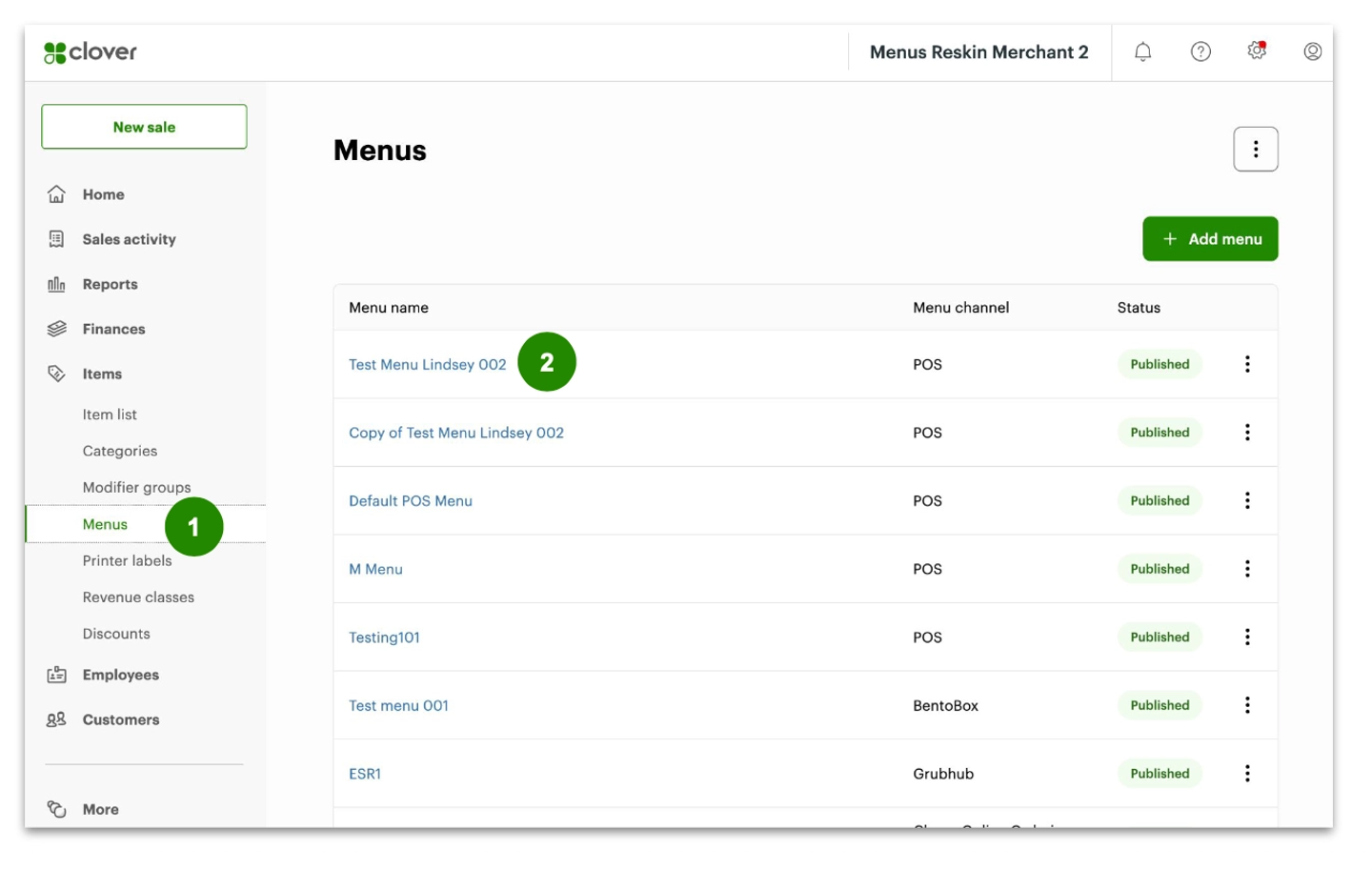
- Go to Items → Menus.
- Select the menu name you want to schedule.
- Select Menu details.
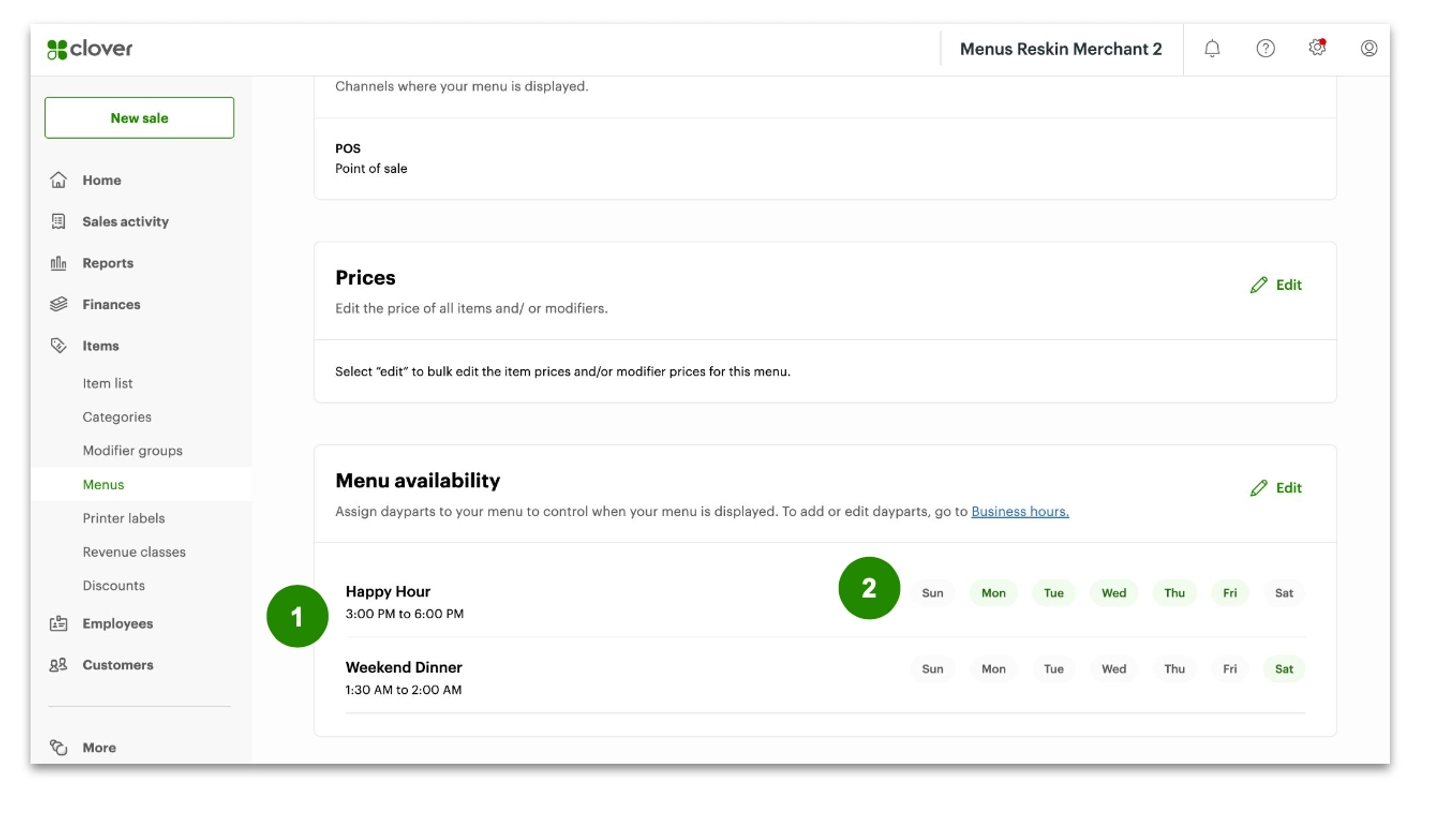
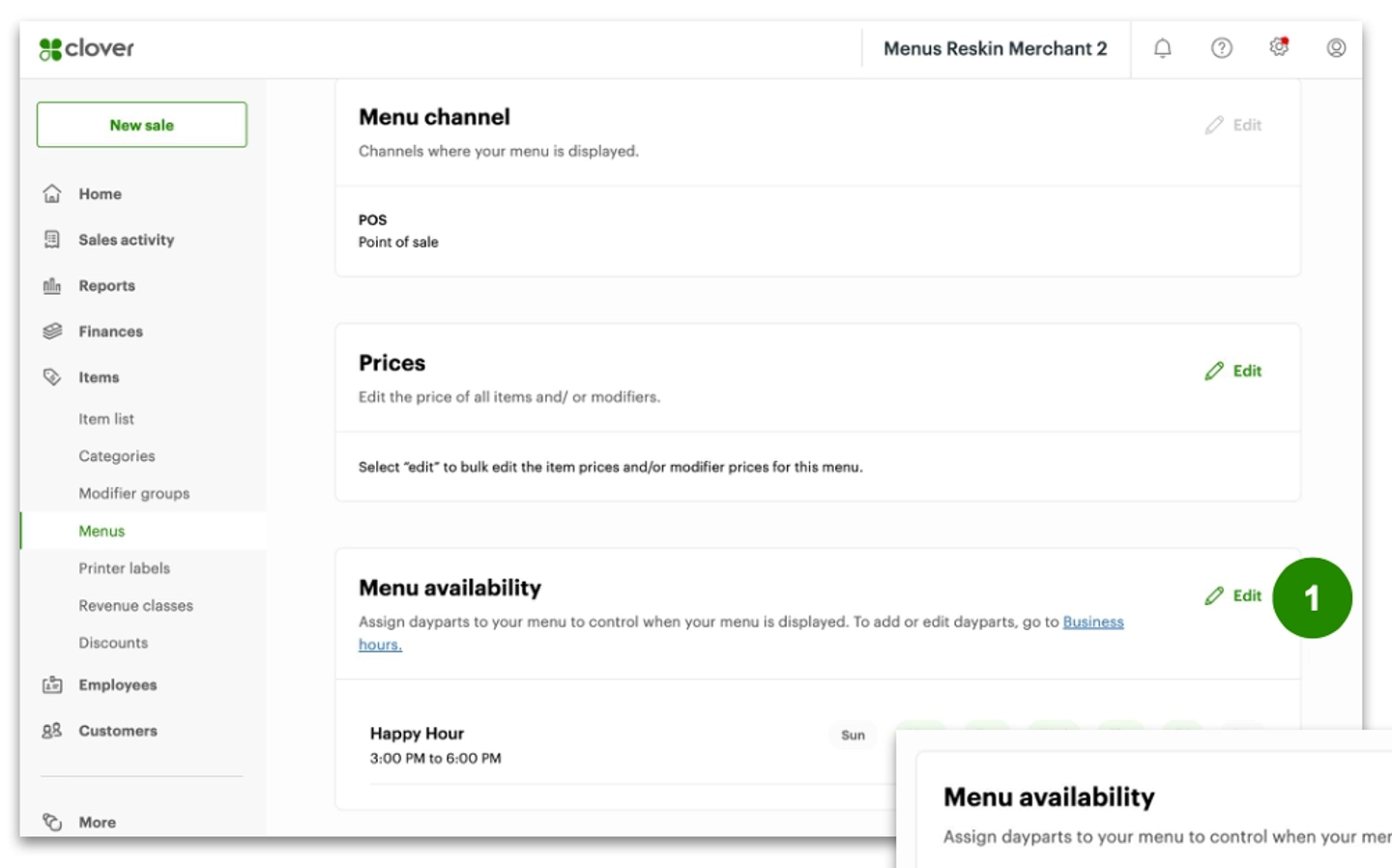
- Scroll to Menu availability.
- Select Edit next to Menu availability.
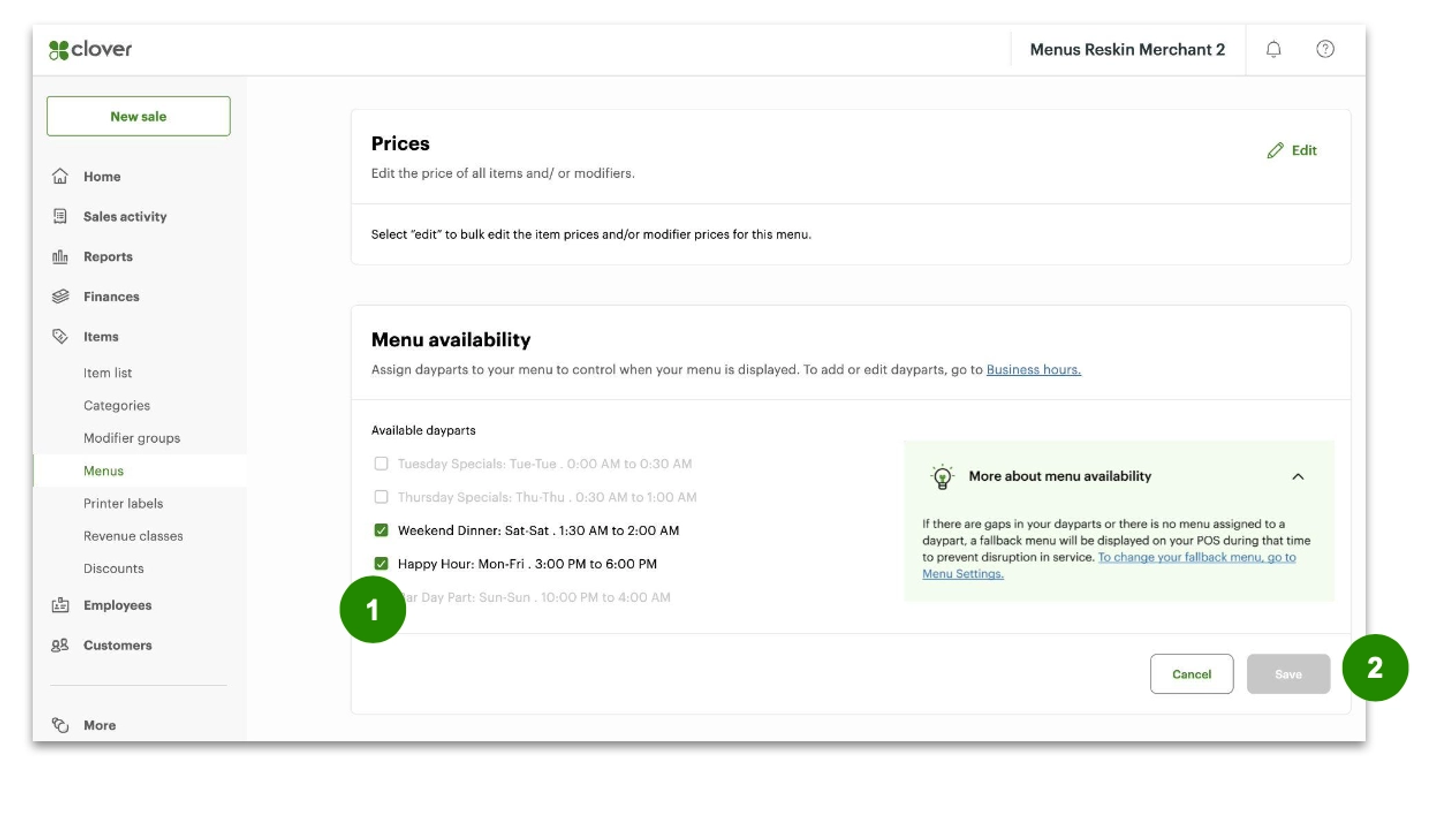
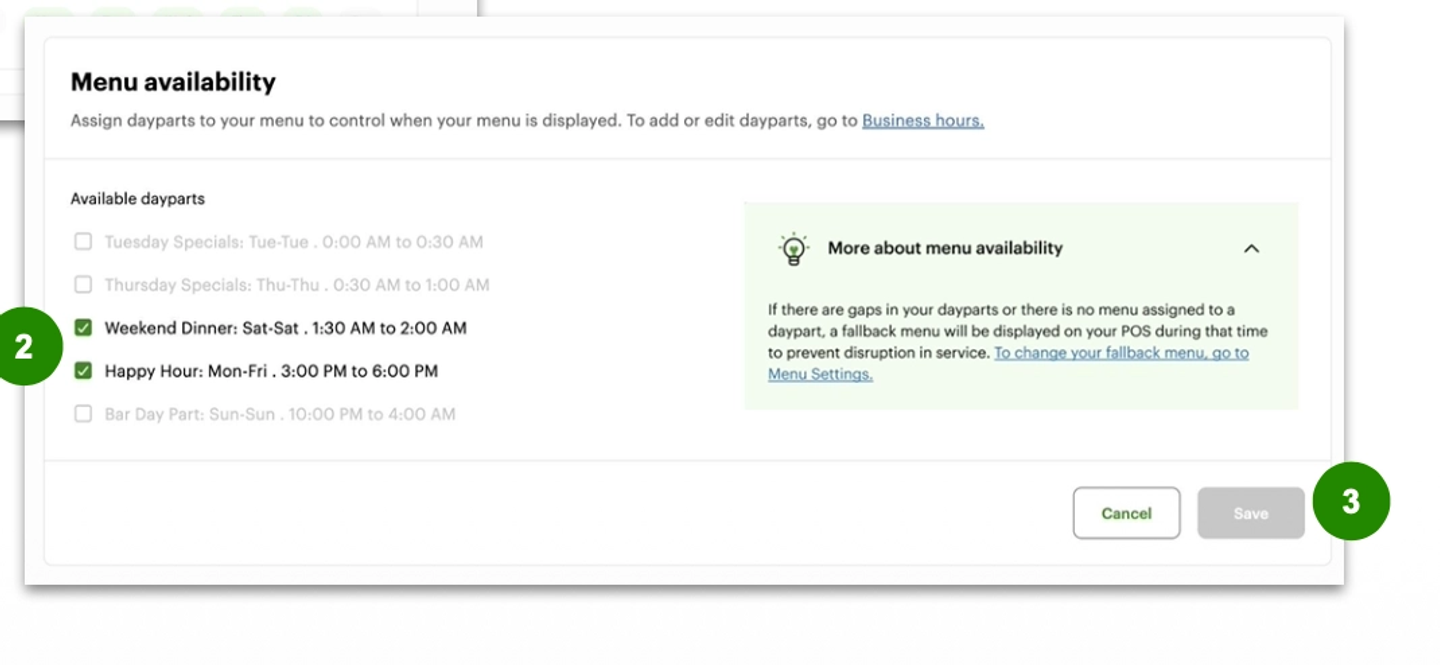
- Tick the daypart(s) you want assigned to that menu.
- Select Save.
If a daypart cannot be selected
That daypart is already assigned to another menu.
- To use it on a different menu, first remove (unassign) that daypart from the other menu.
3) Edit a menu’s dayparts (add or remove)
- Open the menu in Items → Menus.
- Go to Menu details → Menu availability → Edit.
- Select or unselect dayparts.
- Select Save.
4) Configure the fallback menu (recommended)
A fallback menu shows on POS during business hours when no other daypart menu is scheduled.
- Clover will automatically set the Default POS menu (typically the first menu created) as the fallback menu.
Change the fallback menu
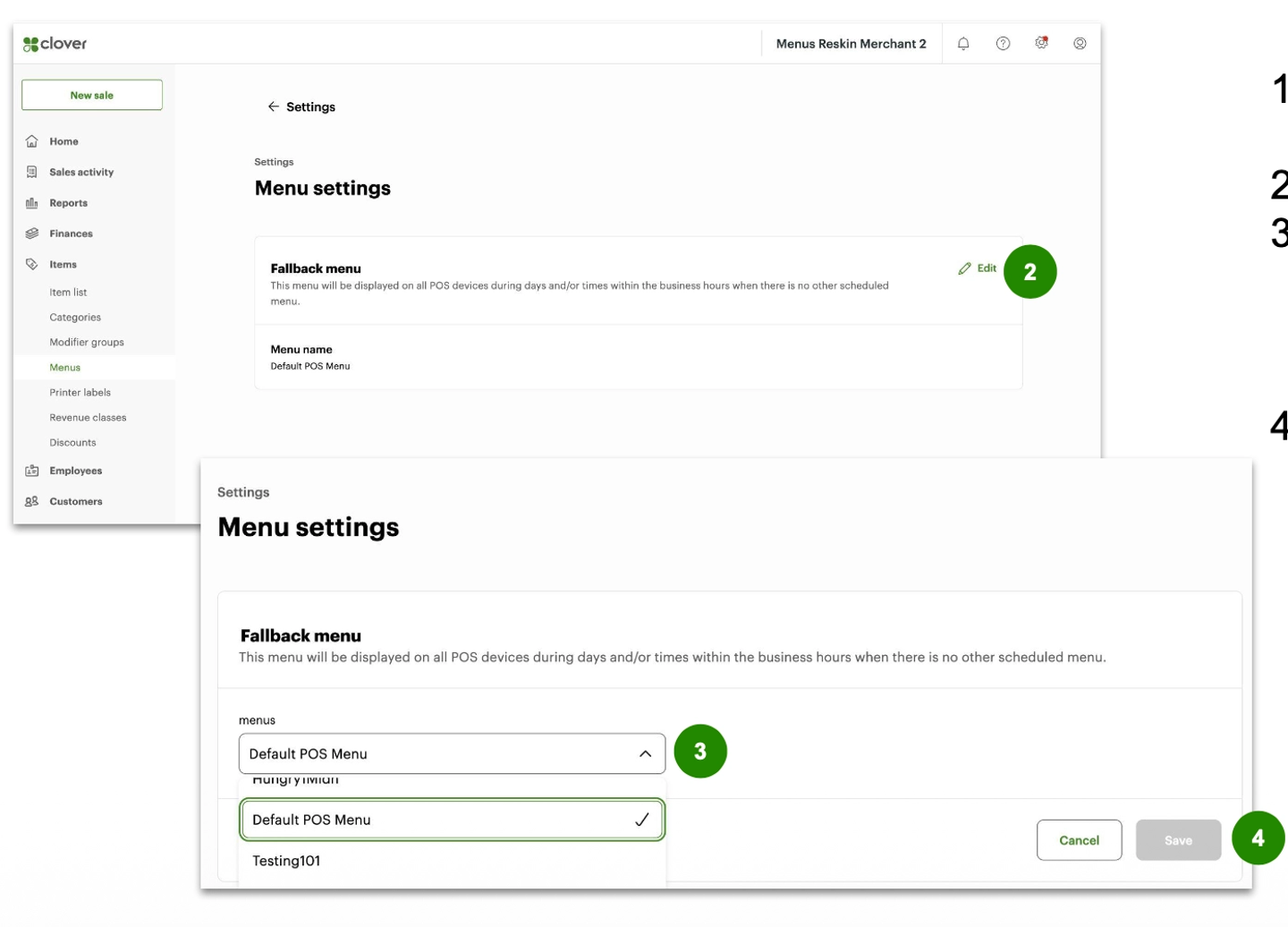
- Go to Settings → Business Operations → Menu Settings.
- Select Edit.
- Use the dropdown to choose the fallback menu.
- Select Save.
How to find the fallback menu
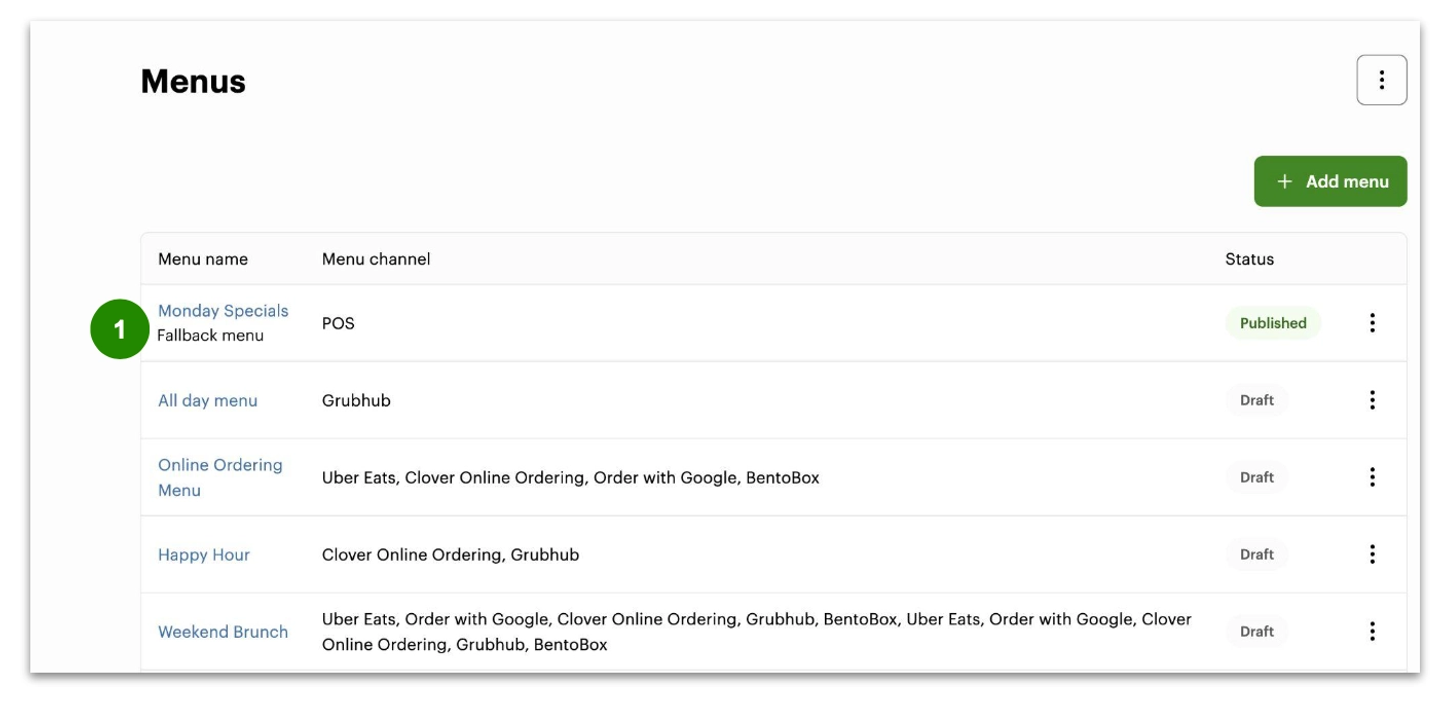
On the Menus landing page, the fallback menu is labeled with descriptive text so it is easy to identify.
5) What the merchant sees on device (Register / Dining)
- The scheduled menu will automatically display during the daypart.
- A banner may show when the current menu ends and which menu will be next.
Manually change the menu on device (if needed)
- In the Register app or Clover Dining app, select the three vertical dots (top right).
- Select Change menu.
- Choose a menu from the list.
- Select Done.