WooCommerce
Version 3.1.1 | By ArtsPayRequirements: WordPress 6.0+ PHP 8.0+ WooCommerce (not version specific) Recaptcha/Turnstile API Keys (optional for robust bot detection) Supports WooCommerce Subscriptions. Added support for Forter Fraud screeningConnect to your Woo Commerce install to ArtsPay
Installation is a simple two step process, first we add the ArtsPay x Woo Commerce plugin to your current WordPress installation, then we configure it to your ArtsPay/Fat Zebra settings.
- Go to plugins in your WordPress Dashboard
- Click Add New plugin in the top left and click Upload Plugin
- Download the above latest build - Woo Commerce ArtsPay ZIP (do not unpack, leave as ZIP)
- Select the ZIP file from your computer and install the plugin, this may take a few minutes ... ☕
- Activate the plugin, either as part of installation or in the Installed Plugins list
The plugin name might appear blank on first install because the gateway name can be white labelled in the settings. Go to Manage and save to set the name.
Configure your ArtsPay x Woo Commerce installation
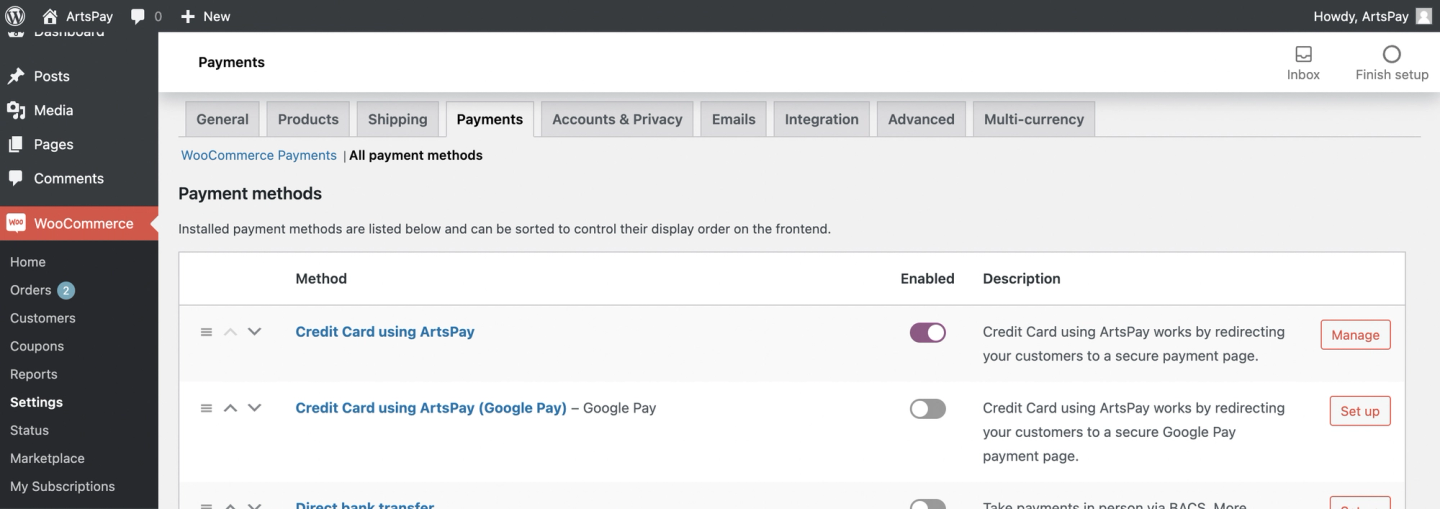
- Once the plugin is installed, visit the WooCommerce settings page, and click on the Payment tab.
- Click on Credit Card using ArtsPay to edit the settings. If you do not see ArtsPay in the list, make sure you have activated the plug in in the WordPress Plug in Manager.
- Enable the Payment Method, and add in your Fat Zebra credentials Username, Token, Shared Secret.
- For Production/Live accounts, make sure Test Mode is unticked, and Sandbox Mode is unticked. For Sandbox/Test accounts, see notes below.
- Click Save.
You can now make purchases!
For all Sandbox and Test accounts, you can enter in any Username, Token and Secret combination. Make sure the 'Test Mode' and 'Sandbox Mode' is ticked. This setting will create a test purchase, but importantly, not display in your Payment Gateway list of transactions, ONLY in WooCommerce.
Woo Commerce Order Statuses
For each order made in your Woo Commerce payment system, they each have a status dependent on what stage an order is at. Order statuses let you know how far along the order is, starting with “Pending payment” and ending with “Completed.” The following order statuses are used:
| Status | Description |
|---|---|
| Pending payment | Order received, no payment initiated. Awaiting payment (unpaid). |
| Failed | Payment failed or was declined (unpaid) or requires authentication (SCA). Note that this status may not show immediately and instead show as Pending until verified (e.g., PayPal). |
| Processing | Payment received (paid) and stock has been reduced; order is awaiting fulfilment. All product orders require processing, except those that only contain products which are both Virtual and Downloadable. |
| Completed | Order fulfilled and complete – requires no further action. |
| On Hold | Awaiting payment – stock is reduced, but you need to confirm payment. |
| Canceled | Canceled by an admin or the customer – stock is increased, no further action required. |
| Refunded | Refunded by an admin – no further action required. |
| Authentication required | Awaiting action by the customer to authenticate the transaction and/or complete SCA requirements. |
Legacy Downloads
Version 2.4.2 | By Fat ZebraRequirements:WordPress 5.7.*PHP 7.4.*WooCommerce 8.0.*For older WordPress installs, there is a legacy build by Fat Zebra available for download, this build uses a Hosted Payment Page to render the checkout experience. The install steps are as above.